01
Add the project details
Enter the property type, rooms, areas, and the scope you want to plan.
Describe your rooms, dimensions, and finish preferences. Kemetro Build prepares a structured bill of quantities that stays connected to your real project, cart, and group-buy workflow.
You can prepare the project first. Sign-in is required when generating and saving the BOQ.
Illustrative interface — actual lines appear only after your project is generated.
A clear project path
The live workflow keeps your inputs, generated quantities, and purchasing actions together.
Enter the property type, rooms, areas, and the scope you want to plan.
Upload a supported floor plan or enter dimensions manually in the project wizard.
Set the quality level and material preferences that belong to this project.
Check the generated material lines before using the live cart or group-buy actions.
Smart BOQ engine
Kemetro Build organizes material requirements by project and category. The resulting BOQ remains the source for later procurement actions, so this landing page never invents products, prices, or supplier availability.
Dimensions and finish choices stay attached to the saved project.
Generated lines are shown in the operational BOQ, where the user can validate them.
Cart and group-buy choices use the existing Kemetro flows and their current data.
Connected procurement
Use the existing module routes for product discovery, coordinated purchasing, and project execution.
Move selected, available material lines into the normal Kemetro shopping journey.
Open cartCreate or join a project-linked group-buy workflow when that option is available.
Explore FlashContinue into the authoritative finishing-project workflow for execution and follow-up.
Open FinishBuilt for real project roles
Prepare a material plan before making purchasing and contractor decisions.
Keep project scope and material requirements organized in a reviewable BOQ.
Structure repeatable planning across unit types without publishing fabricated totals.
Project resources
The original PDF and infographic are hosted inside Kemedar. Preview or download the actual files without external hotlinks.
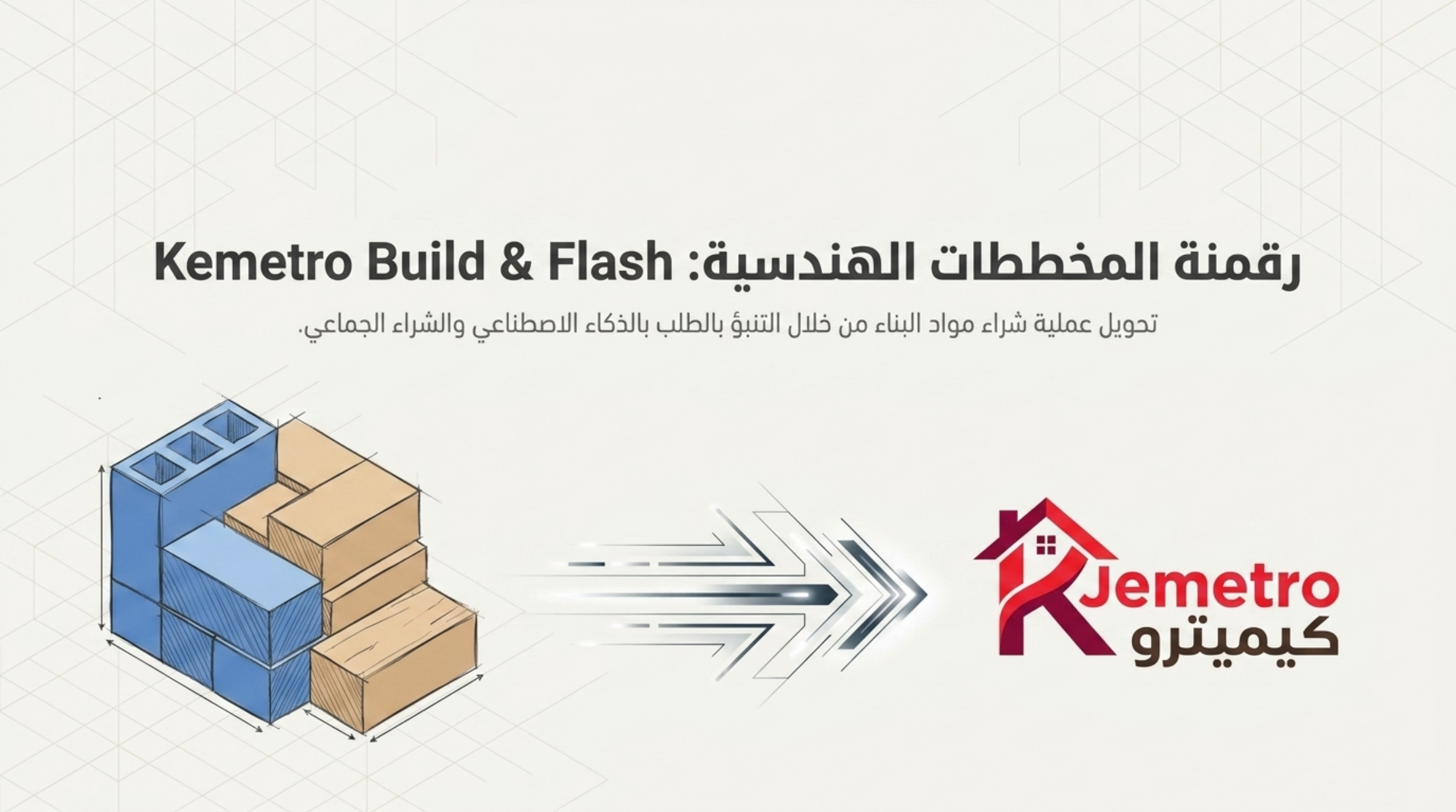
An Arabic visual guide covering the Build and Flash procurement concept.
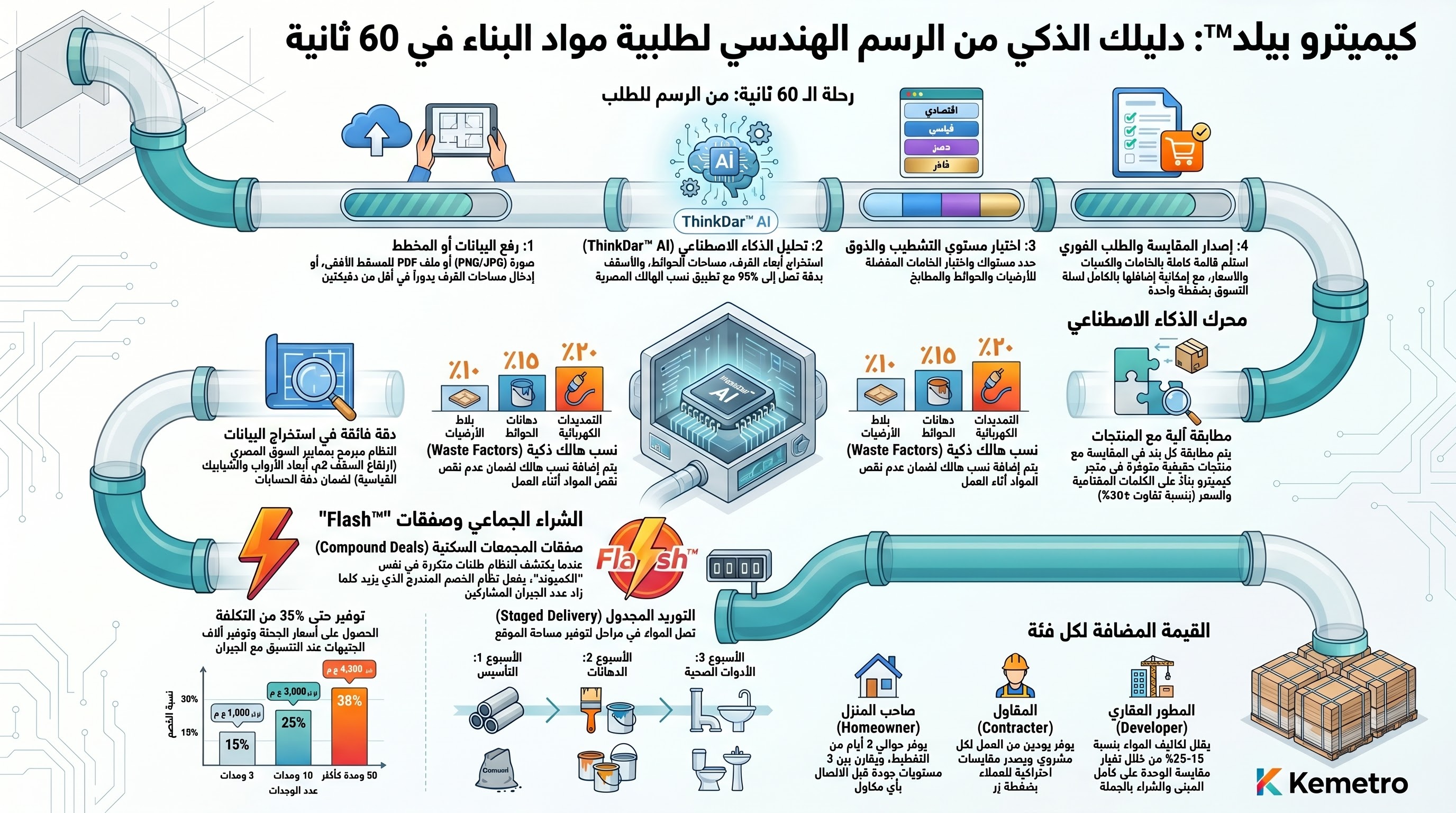
A one-page visual summary supplied with the landing-page design.
View full imageConcept guide supplied by Kemedar. Any illustrated percentages, timing, products, or prices are examples; live project data is authoritative.
Frequently asked questions
You can prepare the project details first. The existing workflow asks you to sign in when generation must be saved to My Projects.
No. Prices, product matches, and supplier availability are shown only by the connected live Kemetro workflows when data is available.
The BOQ is a planning output. You decide which eligible lines move into the cart or a project group-buy flow.
Signed-in users can open My Projects to review projects and continue to their generated BOQ pages.
Start with your real project details and keep every later action connected to the existing Kemetro workflow.